IRIDARIA · Mini guides
Small guides. New possibilities.
From your first record to everyday collection management: explore IRIDARIA, one step at a time.
Beta availability and permissions may vary. These guides describe workflows present in the code; full checks on the distributed build are ongoing.
Four ways to get started
Explore the features
A module overview helps you choose a workflow. Actual availability depends on configuration and permissions.
 Open screenshot ↗
Catalogue from video
Start with a short video on Mac or iPhone/iPad, review the AI candidates and turn them into drafts for checking.
 Open screenshot ↗
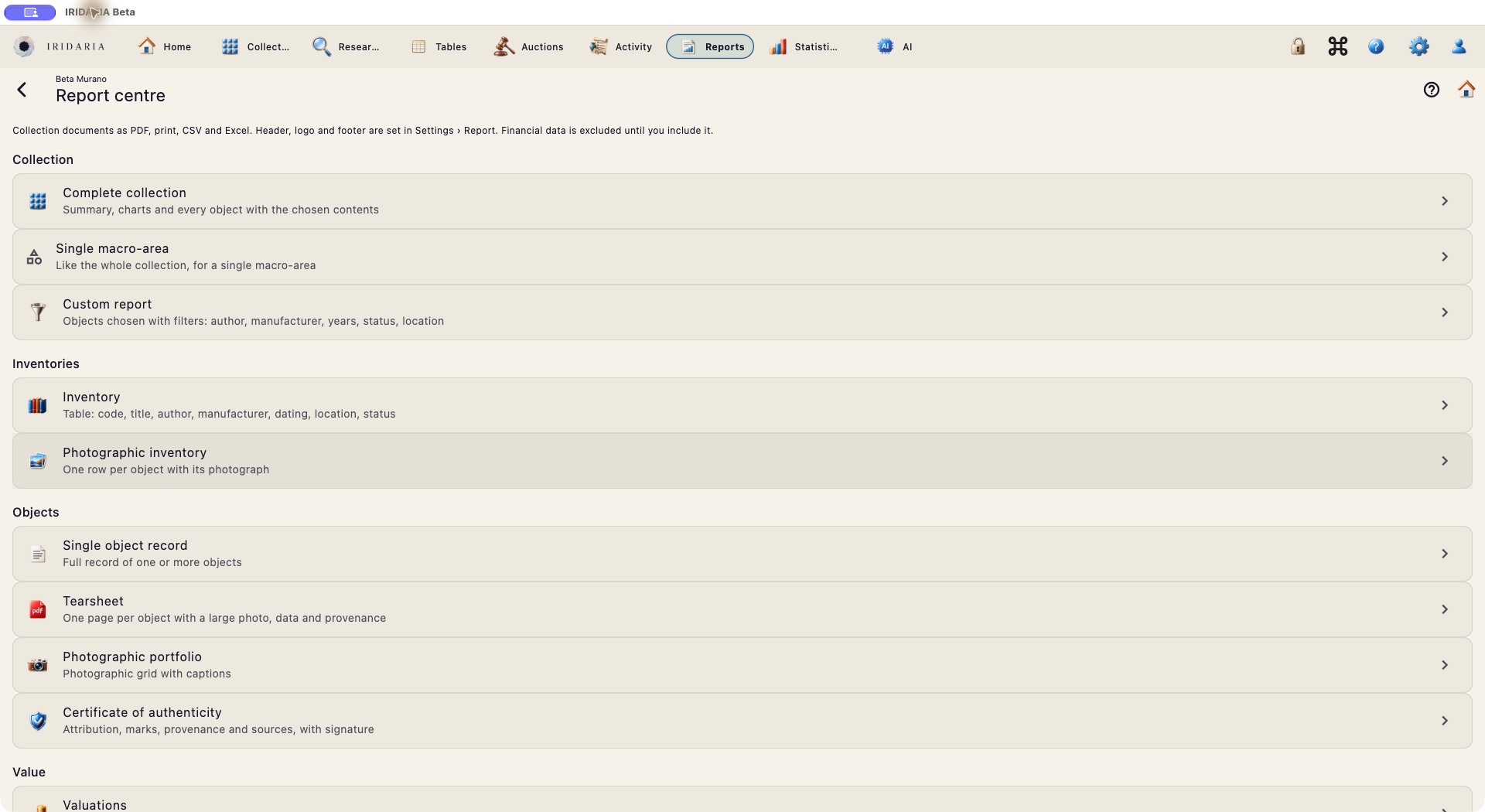
Prepare a report
Choose a document in the report centre and check which information to include before exporting.
 Open screenshot ↗
Organise your collections
Explore the available categories and open the collection you want to work on.
 Open screenshot ↗
The beta, inside the real app
Real interface in English. This video presents authentic beta screens, not simulated operations or AI results.
From a feature to a useful action
From video to a first catalogue draft
Film several objects and prepare candidates for review, without automatically creating final records.
Steps
- On Mac or iPhone/iPad, choose a short, well-lit video with slow camera movements.
- The app extracts and selects frames; AI analysis proposes candidates and groups different views of the same object.
- Discard, merge or correct candidates. Turn useful candidates into drafts and check the information before saving.
A useful test
Try a video of three objects and check whether one piece filmed from two sides remains a single candidate.
Analysis requires a configured AI service. Frame extraction is available on Mac and iOS; previously analysed sessions remain viewable on other devices. The current workflow examines roughly the first two minutes.
Check an inventory
Compare the objects you expect with what you actually find.
Steps
- Open an inventory session and define the expected objects.
- Check pieces, using QR scanning where available, and record what you find.
- Review discrepancies, export PDF or CSV, and close the session as a record.
A useful test
Leave one object unchecked: it should remain “unchecked”, without automatically becoming “not found”.
A closed session preserves its results. Use sample data before carrying out a real inventory check.
Keep track of loans
Keep objects, counterparties, dates and documents together.
Steps
- Create an incoming or outgoing loan and link the objects.
- Record the counterparty, agreement, due date and useful documents.
- Check overdue items and returns, then generate the loan report.
A useful test
Create a fictional loan with a nearby due date and record its return.
Use fictional contact details in the shared beta.
The digital passport
A recognisable reference to accompany an object.
Steps
- Open the passport workflow linked to an object.
- Check the information before using the card and its code.
- Use scanning to check the reference and the permitted viewing workflow.
A useful test
Compare the code and object before and after editing its record.
A passport documents recorded information; it does not replace independent authentication or certification.
Reports and statistics
Turn cataloguing work into a useful overview.
Steps
- Open the report centre and choose the document type.
- Check the selection and included information, especially values and personal details.
- Generate the available output and check it before sharing.
A useful test
Export a small selection and compare its information with the original records.
Report types and indicators depend on available modules and data.
Four profiles, your way of working
Start with a profile and adapt the cockpit and modules to your collection.
Steps
- Choose one of the four preset profiles as a starting point.
- Personalise views and modules relevant to your categories.
- Review the configuration when your activities and needs change.
A useful test
Set up two different workflows: one for cataloguing and one for checking the collection.
Module visibility does not grant access: roles continue to control operations.
Protection and sample data
Share the work while keeping the beta separate from the real archive.
Steps
- Sign in to the dedicated beta with your own account.
- Use fictional data to test edits, deletions, imports and exports.
- Enable biometric locking in settings on a supported device, and check your sharing choices.
A useful test
Add a test object, edit it and delete it; tell others when working on shared sample data.
Originals remain in the separate production environment. Restoring the beta sample has yet to be fully tested. The first-login Face ID/Touch ID prompt is planned for the next version.
IRIDARIA BETA
Your observations help the beta grow
We are preparing a private space for participants to ask questions, suggest ideas and report issues. It is not active yet: for now, email support@iridaria.com.